import math
import kiln

class Trail(kiln.App):
    def setup(self):
        self.trail = []

    def update(self):
        self.trail.append((kiln.mouse.x, kiln.mouse.y))
        self.trail = self.trail[-25:]

    def draw(self):
        kiln.background(20)
        for i, (x, y) in enumerate(self.trail):
            kiln.fill(255, 140, 60, 255 * i / 25)
            kiln.circle(x, y, 4 + i * 0.8)

# A scripted mouse sweeping a lissajous loop.
sweep = [
    (f, MouseMove(200 + 150 * math.sin(f * 0.08), 150 + 90 * math.sin(f * 0.12)))
    for f in range(90)
]
show_video(Trail(), frames=90, events=sweep)Interaction
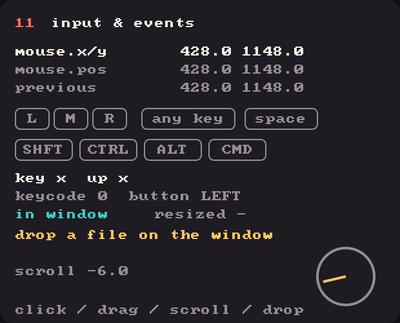
Showcase panel 11: mouse, keys, modifiers, scroll, file drops, window events.
Try it live: run uv run python examples/showcase.py, then hover panel 11, or see the showcase.
A sketch that reacts to you is a sketch that feels alive. In Kiln you override a method, and Kiln calls it when something happens: mouse_moved, mouse_pressed, key_pressed, and friends: each names the event that happened.
Scripted input
These docs have no mouse, so every example below is driven by simulated events. kiln.testing.render_frames (and the docs’ show / show_video) takes an events list of (frame, event) pairs. Each event goes through the same dispatch as real input, right before that frame’s update. You can use the same trick in your own tests. A wrong event (a typo, a missing argument) fails immediately with a message naming it, before any frame runs.
| Event | Meaning |
|---|---|
MouseMove(x, y) |
move the mouse |
MousePress(button, x=None, y=None), MouseRelease(...) |
press or release a kiln.MouseButton (default left); give x, y to move there first |
MouseScroll(scroll_x, scroll_y) |
wheel or trackpad |
MouseEnter(), MouseExit() |
the cursor enters or leaves the window |
KeyPress(key), KeyRelease(key) |
a kiln.Key or ord("a") |
Drop(files) |
a list of file paths |
Everything else in this page is the code you would write in a real App.
Follow the mouse
mouse_moved(x, y) gets the position in window points, origin top-left. Kiln also keeps kiln.mouse.x and kiln.mouse.y up to date, so update and draw can read them any time.
Click to spawn
mouse_pressed(x, y, button) fires once per click. kiln.MouseButton has LEFT, MIDDLE and RIGHT (0, 1 and 2).
import kiln

class Spawner(kiln.App):
    def setup(self):
        self.circles = []

    def mouse_pressed(self, x, y, button):
        color = (255, 90, 90) if button == kiln.MouseButton.LEFT else (90, 160, 255)
        self.circles.append([x, y, 5, color])

    def update(self):
        for c in self.circles:
            c[2] += 0.6          # grow

    def draw(self):
        kiln.background(20)
        for x, y, r, color in self.circles:
            kiln.fill(*color)
            kiln.circle(x, y, r)

clicks = []
for i, (f, x, y) in enumerate([(5, 90, 90), (20, 250, 80), (35, 160, 200), (50, 320, 210)]):
    button = kiln.MouseButton.LEFT if i % 2 == 0 else kiln.MouseButton.RIGHT
    clicks += [(f, MousePress(button, x, y)), (f + 1, MouseRelease(button))]
show_video(Spawner(), frames=80, events=clicks)
Drag to draw
When a button is held, moves arrive as mouse_dragged(x, y, button) instead of mouse_moved. Here every drag drops a dot, so you paint with the mouse.
import math
import kiln

class Paint(kiln.App):
    def setup(self):
        self.dots = []

    def mouse_dragged(self, x, y, button):
        self.dots.append((x, y))

    def draw(self):
        kiln.background(20)
        kiln.fill(120, 220, 180)
        for x, y in self.dots:
            kiln.circle(x, y, 7)

stroke = [(0, MousePress(x=60, y=150))]
stroke += [
    (1 + f, MouseMove(60 + f * 3, 150 + 80 * math.sin(f * 0.15))) for f in range(90)
]
stroke += [(91, MouseRelease())]
show_video(Paint(), frames=92, events=stroke)
Keys change colour
key_pressed(key) gets a number. For printable keys it is the character’s code, so key == ord("r"); shift gives ord("R"). Special keys are in kiln.Key (Key.LEFT, Key.SPACE, Key.F1, …). key in kiln.keys tells you whether a key is held right now.
import kiln

class Palette(kiln.App):
    def setup(self):
        self.color = (255, 255, 255)

    def key_pressed(self, key):
        if key == ord("r"):
            self.color = (255, 70, 70)
        elif key == ord("g"):
            self.color = (70, 220, 120)
        elif key == ord("b"):
            self.color = (80, 130, 255)

    def draw(self):
        kiln.background(20)
        kiln.fill(*self.color)
        kiln.circle(200, 150, 80)

typing = []
for frame, letter in [(10, "r"), (30, "g"), (50, "b")]:
    typing += [(frame, KeyPress(ord(letter))), (frame, KeyRelease(ord(letter)))]
show_video(Palette(), frames=70, events=typing)
Scroll to resize
mouse_scrolled(x, y, scroll_x, scroll_y) reports the wheel or trackpad.
import kiln

class Resize(kiln.App):
    def setup(self):
        self.radius = 40

    def mouse_scrolled(self, x, y, scroll_x, scroll_y):
        self.radius = max(5, self.radius + scroll_y * 3)

    def draw(self):
        kiln.background(20)
        kiln.fill(255, 200, 80)
        kiln.circle(200, 150, self.radius)

wheel = [(f, MouseScroll(0, 1)) for f in range(5, 35)] + [(f, MouseScroll(0, -1)) for f in range(45, 70)]
show_video(Resize(), frames=80, events=wheel)
More events
There are more callbacks to override when you need them: key_released, mouse_released, mouse_entered / mouse_exited, window_resized(w, h) (in points) and files_dropped(info) with info.files and info.position for files dropped on the window. For modifiers and scancodes, override key_pressed_event(event) and friends, which get a kiln.KeyEvent or kiln.MouseEvent and by default call the simple versions. Their modifiers are bit flags, so event.modifiers & kiln.Key.COMMAND is true while Command is held; kiln.Key.SHIFT in kiln.keys polls either shift key.
Polling works too: kiln.mouse.x, kiln.mouse.y, kiln.mouse.previous_x, kiln.mouse.pressed and button in kiln.mouse.buttons. ESC closes the window; pass exit_on_escape=False to kiln.run to take it over.
Calls from other threads
Everything in a sketch runs on one thread, so a worker, a network listener or a model cannot change the sketch’s state or call Kiln functions directly. Hand it a call instead: kiln.call_soon(fn, *args) is safe from any thread, and Kiln runs fn(*args) on the main thread at the start of the next frame, before the frame’s input events and before update. Calls run in the order they were queued, and a call queued by a call waits for the next frame. An exception in a call ends the run, as one in update does.
Here three threads each add a row of dots; the main thread draws them. The page joins the threads in setup so every render is the same; in a real sketch they would run on their own and the dots would arrive as they are ready.
import threading
import kiln

class Rows(kiln.App):
    def setup(self):
        self.dots = []

        def make_row(row):  # runs on its own thread
            for i in range(12):
                kiln.call_soon(self.dots.append, (30 + i * 30, 60 + row * 90, row))

        threads = [threading.Thread(target=make_row, args=(row,)) for row in range(3)]
        for t in threads:
            t.start()
        for t in threads:
            t.join()  # only so the page renders the same every time

    def draw(self):
        kiln.background(20)
        for x, y, row in self.dots:
            kiln.fill(kiln.Color.from_hsb(row * 70, 200, 255))
            kiln.circle(x, y, 12)

show(Rows())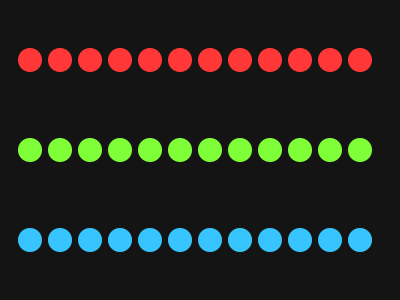
A fixed simulation step
A simulation that moves by the length of the last frame behaves differently at 30, 60 and 144 frames per second. kiln.fixed_steps(rate) gives the steps due this frame, each exactly 1 / rate seconds long, counted on Kiln’s clock. At 144 fps some frames have no step and some have one; at 30 fps every frame has two. Over a second there are rate steps either way, so the simulation looks the same on any screen.
import kiln

class Bounce(kiln.App):
    def setup(self):
        self.y, self.vy = 40.0, 0.0

    def update(self):
        for dt in kiln.clock.fixed_steps(rate=60):  # 60 steps a second, whatever the frame rate
            self.vy += 900 * dt
            self.y += self.vy * dt
            if self.y > 260:
                self.y, self.vy = 260, -self.vy * 0.95

    def draw(self):
        kiln.background(20)
        kiln.fill(255, 107, 82)
        kiln.circle(200, self.y, 20)

show_video(Bounce(), frames=90, fps=30)
No more than max_steps (4 by default) run in a frame. After a stall, such as a breakpoint or a heavy first frame, the steps past that are dropped, not run later: the simulation slows down instead of spiralling into ever longer frames. The result has count (steps this frame) and dropped (steps skipped), so a sketch can show or log a slow frame. Calling fixed_steps(120) again in the same frame, in draw say, gives the same steps without advancing the clock; each rate keeps its own count. The count starts at the first call after setup, and a new run starts it over.
Try this
Hold the mouse to leave a rainbow comet; scroll to change its size.
import math
import kiln

class Comet(kiln.App):
    def setup(self):
        self.dots = []
        self.size = 10

    def mouse_scrolled(self, x, y, scroll_x, scroll_y):
        self.size = max(3, self.size + scroll_y * 2)

    def update(self):
        if kiln.mouse.pressed:
            self.dots.append([kiln.mouse.x, kiln.mouse.y, self.size, len(self.dots)])
        for d in self.dots:
            d[2] *= 0.97

    def draw(self):
        kiln.background(15)
        for x, y, r, n in self.dots[-150:]:
            kiln.fill(127 + 127 * math.sin(n * 0.08), 127 + 127 * math.sin(n * 0.08 + 2.1), 127 + 127 * math.sin(n * 0.08 + 4.2), 200)
            kiln.circle(x, y, r)

script = [(0, MousePress(x=50, y=220))]
script += [(f, MouseMove(50 + f * 3.2, 150 + 90 * math.sin(f * 0.1))) for f in range(1, 100)]
script += [(f, MouseScroll(0, 1)) for f in range(30, 45)]
script += [(100, MouseRelease())]
show_video(Comet(), frames=105, events=script)