import pathlib
import tempfile

import numpy as np
from PIL import Image as PILImage

jar_path = pathlib.Path("../assets/images/ming-jar-dragon.jpg")

folder = pathlib.Path(tempfile.mkdtemp())
y, x = np.mgrid[-1:1:128j, -1:1:128j]
dot = np.zeros((128, 128, 4), np.uint8)
dot[..., :3] = 255
dot[..., 3] = 255 * np.clip(1 - np.hypot(x, y), 0, 1) ** 1.5
PILImage.fromarray(dot).save(folder / "dot.png")Images
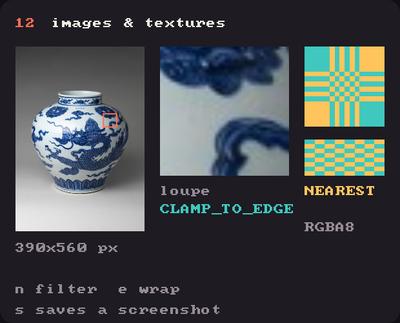
Showcase panel 12: Image, draw(source=), texture filters and wrap modes.
Try it live: run uv run python examples/showcase.py, then hover panel 12, or see the showcase.
Shapes take you a long way, but sometimes you want a photo, a hand-drawn texture or a sprite. kiln.Image loads a picture from a file and draws it anywhere, at any size, in any colour.
A picture to load
Any PNG, JPEG or GIF will do. This page uses a Ming porcelain jar from the early 15th century, painted with a dragon in cobalt blue; The Met’s photograph of it is in the public domain. It ships with these docs, so the page builds without the network. We also paint one tiny picture with numpy: a soft white dot that fades to transparent, which makes a perfect sprite.
Load and draw
Load an image once, in setup (never in draw, which runs every frame), then draw it with draw(x, y, w, h). As with rectangles, (x, y) is the top-left corner.
import kiln

class Jar(kiln.App):
    def setup(self):
        self.jar = kiln.Image(jar_path)

    def draw(self):
        kiln.background(24, 22, 28)
        self.jar.draw(20, 10, 195, 280)
        kiln.fill(230)
        kiln.text(f"{self.jar.width} x {self.jar.height} pixels", 240, 30)
        kiln.text("Jar with dragon, Ming (1426-35)", 240, 50)

show(Jar(), size=(640, 300), pixel_ratio=2)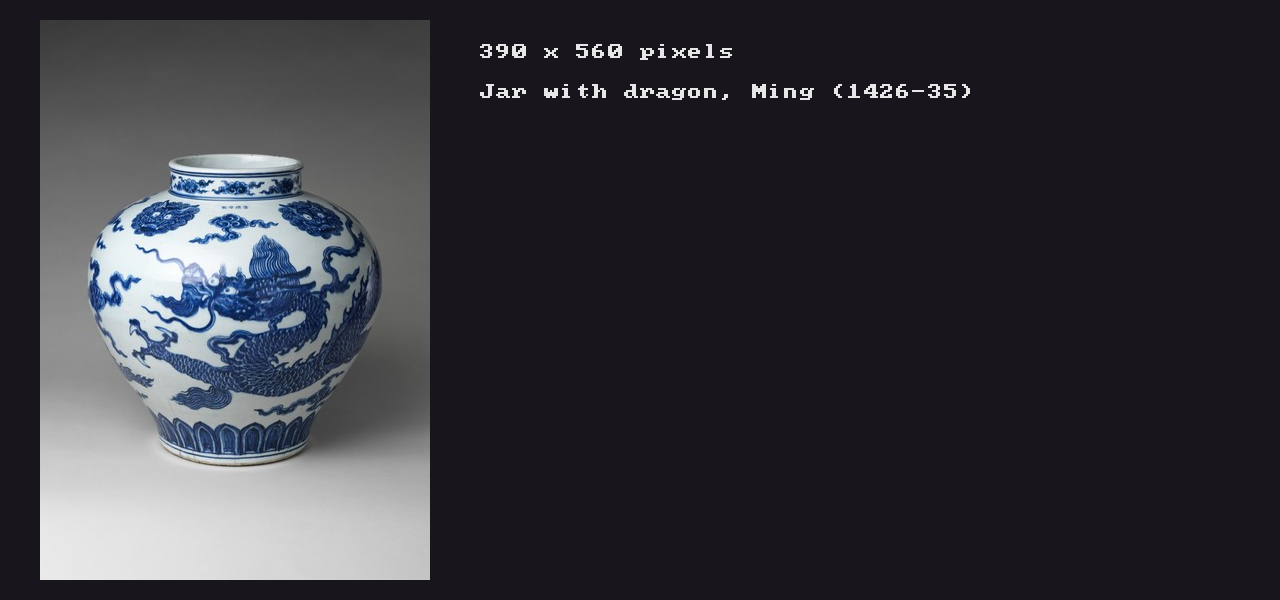
The picture is 390 × 560 pixels and we draw it 195 × 280 points. This page renders at 2× density (like a Retina screen), where a point is two pixels across, so that’s exactly one image pixel per screen pixel, and every brushstroke stays crisp.
draw(x, y) without a size draws one image pixel per point. On a regular screen that’s pixel for pixel. On a Retina screen each image pixel is stretched over 2 × 2 screen pixels and smoothed (linear filtering), so it looks a little soft. Draw at half size, as here, when you want it sharp. Crisp, blocky magnification (nearest filtering) is in Pixels and screen.
Scale and transform
Give draw any width and height to stretch the image. Transforms work too, so you can translate, rotate and scale pictures like any other shape. A turned image gets smooth, anti-aliased edges, like every other shape.
jar = kiln.Image(jar_path)

def draw():
    kiln.background(24, 22, 28)
    jar.draw(10, 10, 98, 140)          # small
    jar.draw(120, 10, 300, 140)        # stretched wide
    with kiln.transform():
        kiln.translate(530, 150)
        kiln.rotate(math.radians(-10))
        jar.draw(-95, -135, 190, 270)      # turned around its centre

show(draw, size=(640, 300), pixel_ratio=2)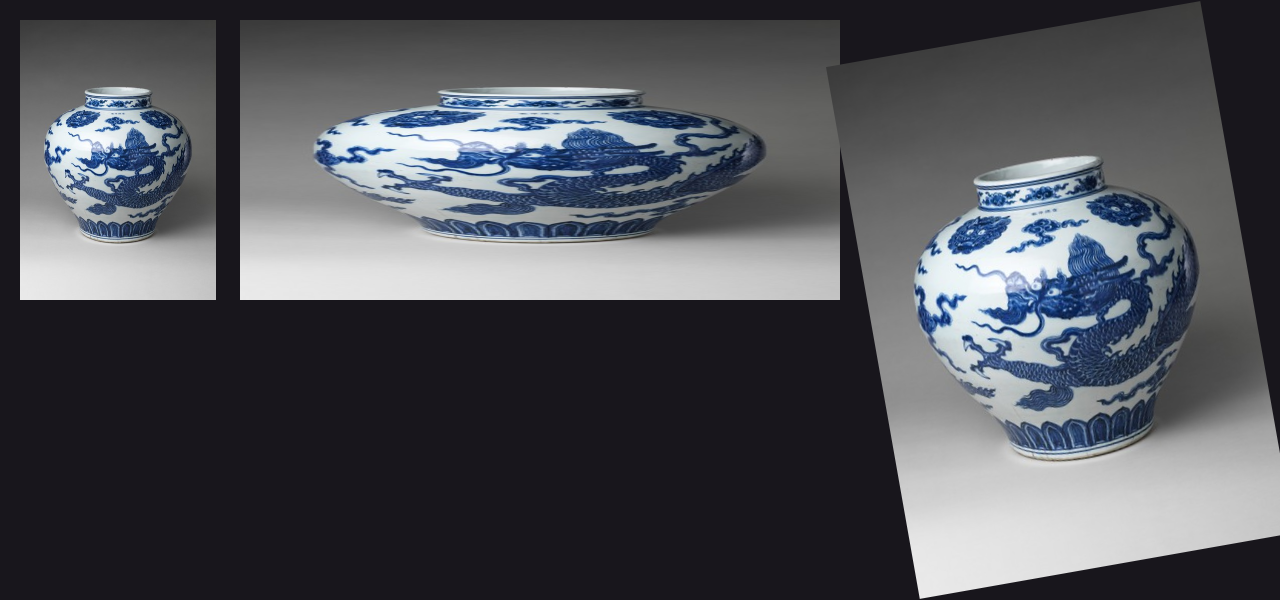
An image loaded outside an App, as here, is sent to the GPU the first time it’s drawn.
A few things worth knowing about loading:
- Gray 16-bit files (depth maps, scans) keep their top 8 bits, so they look as they should instead of coming out white.
- EXIF orientation is ignored: a phone photo loads the way the camera stored it, possibly on its side. Rotate it with
rotate, or fix the file.
Tint and transparency
kiln.tint(...) tints the image: each pixel is multiplied by the tint colour. White (the default) leaves the image as it is, a colour tints it, and the alpha makes it see-through. The dot’s own transparency blends with what’s underneath.
dot = kiln.Image(folder / "dot.png")

def draw():
    kiln.background(24, 22, 28)
    for i, color in enumerate([(255, 255, 255), (255, 150, 120), (120, 200, 255), (255, 220, 120)]):
        kiln.tint(*color)
        jar.draw(10 + i * 158, 10, 146, 210)
        kiln.tint(*color, 110)        # the same tint at under half the opacity
        dot.draw(43 + i * 158, 225, 70, 70)

show(draw, size=(640, 300), pixel_ratio=2)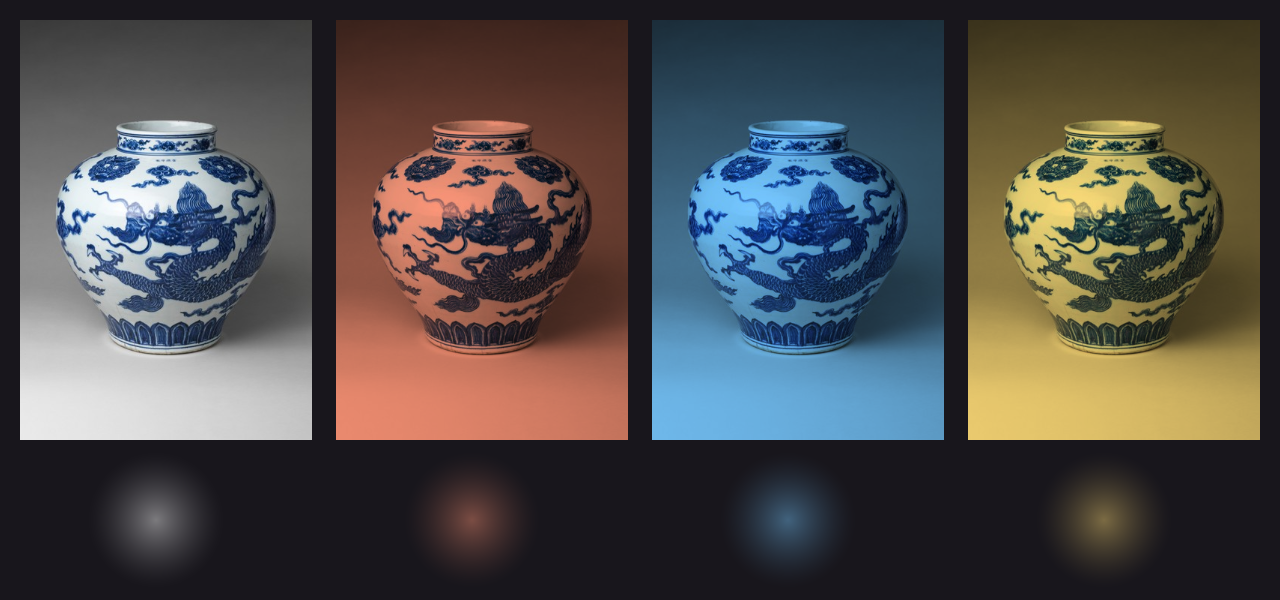
Centring and anchors
image.anchor = (0.5, 0.5) makes (x, y) the centre of the image, which is what you want for sprites that move and spin. image.anchor_point takes an offset in points instead, and image.anchor = None goes back to the corner. rect_mode(kiln.RectMode.CENTER) centres images too.
def draw():
    kiln.background(20)
    dot.anchor = (0.5, 0.5)
    for i in range(12):
        with kiln.transform():
            kiln.translate(200, 150)
            kiln.rotate(math.radians(i * 30))
            kiln.tint(kiln.Color.from_hsb(i * 21, 180, 255))
            dot.draw(100, 0, 40 + i * 4, 20)  # a squashed dot, centred 100 points out
    kiln.tint(255)
    dot.draw(200, 150, 90, 90)
    dot.anchor = None

show(draw)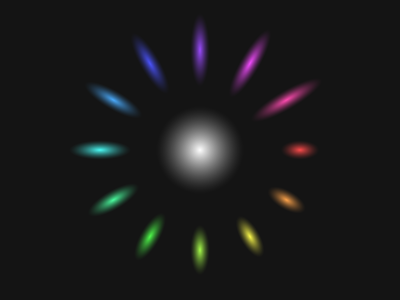
Sprites in a loop
Drawing the same image many times in a row is cheap: Kiln sends all of them to the GPU in one draw call, so a thousand sprites cost about what a thousand circles do. With Blend.ADD, overlapping dots add up to light. Making a fresh kiln.Texture every frame is fine too: released textures hand their GPU memory to the next one of a similar size, so nothing piles up.
class Sparks(kiln.App):
    def setup(self):
        self.dot = kiln.Image(folder / "dot.png")
        self.dot.anchor = (0.5, 0.5)

    def draw(self):
        kiln.background(10, 10, 25)
        kiln.blend(kiln.Blend.ADD)
        t = kiln.clock.frame / 30  # seconds, at the video's 30 fps
        for i in range(1000):
            angle = kiln.noise(i * 0.05, t * 0.2) * 12
            radius = 20 + (i * 0.13 + t * 30) % 140
            x = 200 + radius * np.cos(angle)
            y = 150 + radius * np.sin(angle)
            kiln.tint(255, 120 + i % 120, 60, 120)
            self.dot.draw(x, y, 14, 14)

show_video(Sparks(), frames=60, width=300)
Try this: bioluminescence
Tint the jar deep blue and dim, and it sinks to the sea floor like a wreck’s cargo; glowing plankton drift up over it on noise paths, each pulsing at its own pace. Try a warmer tint, more plankton, or auto_clear=False for luminous trails.
class Abyss(kiln.App):
    def setup(self):
        self.jar = kiln.Image(jar_path)
        self.dot = kiln.Image(folder / "dot.png")
        self.dot.anchor = (0.5, 0.5)

    def draw(self):
        kiln.background(4, 8, 20)
        kiln.tint(70, 110, 170)
        self.jar.draw(0, 0, kiln.window.width, kiln.window.width * 560 / 390)
        kiln.blend(kiln.Blend.ADD)
        t = kiln.clock.frame / 30  # seconds, at the video's 30 fps
        for i in range(160):
            x = kiln.noise(i * 0.31, t * 0.1) * kiln.window.width
            y = (kiln.noise(i * 0.31 + 50, 0.0) * 340 - t * (8 + i % 7)) % 320 - 10
            glow = max(0.0, kiln.signed_noise(i * 0.7, t * 1.2)) * 255
            kiln.tint(120, 230, 255, glow)
            self.dot.draw(x, y, 22, 22)
            kiln.tint(230, 255, 255, glow)
            self.dot.draw(x, y, 5, 5)
        kiln.blend(kiln.Blend.ALPHA)

show_video(Abyss(), frames=90, size=(400, 300))
Picture: “Jar with dragon”, China, Ming dynasty, Xuande mark and period (1426–35), porcelain painted with cobalt blue under a transparent glaze. The Metropolitan Museum of Art, Gift of Robert E. Tod, 1937 (37.191.1), public domain via Open Access.