import kiln

def draw():
    kiln.background(20)
    kiln.fill(255, 107, 82)
    kiln.circle(150, 150, 70)
    kiln.fill(80, 160, 255, 128)      # half see-through
    kiln.circle(220, 150, 70)

show(draw)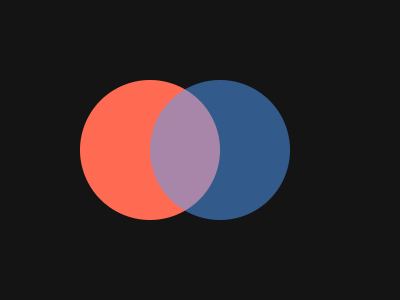
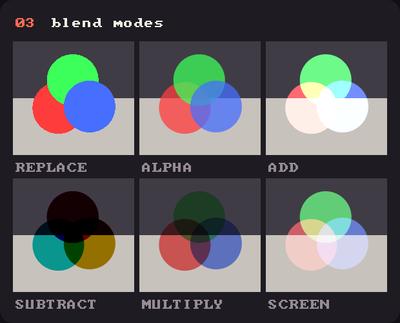
Showcase panel 03: the six Blend modes over a two-tone ground.
Try it live: run uv run python examples/showcase.py, then hover panel 03, or see the showcase.
Blending decides what happens where a new shape lands on top of old pixels. Light adds up, ink multiplies, and a see-through rectangle makes old drawings fade. This page tours the modes, then makes trails and a glow.
Kiln starts with alpha blending on: a shape with alpha 128 lets half of what is below show through.
import kiln
def draw():
kiln.background(20)
kiln.fill(255, 107, 82)
kiln.circle(150, 150, 70)
kiln.fill(80, 160, 255, 128) # half see-through
kiln.circle(220, 150, 70)
show(draw)
kiln.blend(Blend.ALPHA) brings it back after another mode, and kiln.blend(None) turns blending off.
Blend.ADD adds colours, like overlapping spotlights: red plus green is yellow, all three make white. Use it on a dark background.
import kiln
from kiln import Blend

def draw():
    kiln.background(0)
    kiln.blend(Blend.ADD)
    kiln.fill(255, 0, 0)
    kiln.circle(160, 120, 70)
    kiln.fill(0, 255, 0)
    kiln.circle(240, 120, 70)
    kiln.fill(0, 0, 255)
    kiln.circle(200, 185, 70)

show(draw)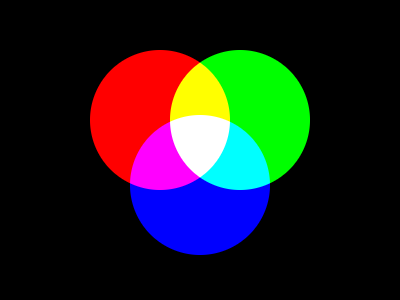
Blend.MULTIPLY multiplies colours, like translucent ink on white paper: overlaps get darker and nothing ever gets brighter. Use a light background.
import kiln
from kiln import Blend

def draw():
    kiln.background(245)
    kiln.blend(Blend.MULTIPLY)
    kiln.fill(255, 200, 40)
    kiln.circle(160, 120, 70)
    kiln.fill(255, 60, 150)
    kiln.circle(240, 120, 70)
    kiln.fill(40, 200, 255)
    kiln.circle(200, 185, 70)

show(draw)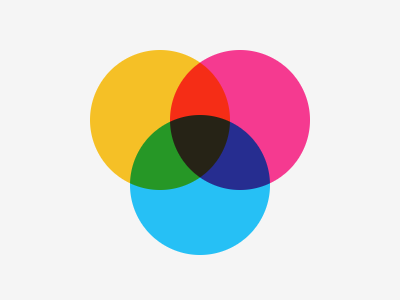
Blend.SCREEN is a softer ADD that never clips to pure white, like projecting two slides on one wall. Blend.SUBTRACT takes colour away, so overlaps get darker and turn towards the opposite hue. Here is the same three circles with each.
import kiln
from kiln import Blend

def circles():
    kiln.fill(230, 90, 60)
    kiln.circle(0, 0, 55)
    kiln.fill(60, 200, 120)
    kiln.circle(60, 0, 55)
    kiln.fill(70, 110, 240)
    kiln.circle(30, 52, 55)

def draw():
    kiln.background(60)                       # left half: SCREEN on dark
    kiln.blend(Blend.ALPHA)
    kiln.fill(215)
    kiln.rect(200, 0, 200, 200)     # right half: SUBTRACT on light
    with kiln.transform():
        kiln.translate(62, 70)
        kiln.blend(Blend.SCREEN)
        circles()
    with kiln.transform():
        kiln.translate(262, 70)
        kiln.blend(Blend.SUBTRACT)
        circles()

show(draw, size=(400, 200))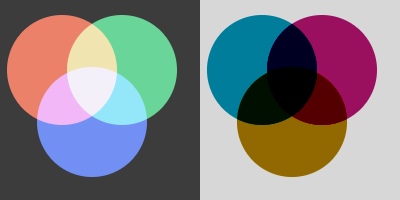
kiln.blend(Blend.REPLACE) (or kiln.blend(None)) writes colours as they are, with no see-through and no soft edges. It is for special effects; most sketches stay with ALPHA. Every blend also takes its name as a string, kiln.blend("add"). with kiln.style(blend=...): restores the blend mode at the end of the block, so a helper can use ADD without leaving it on for the caller.
Normally every frame starts with a fresh clear. Turn that off with kiln.window.auto_clear = False (or kiln.run(..., auto_clear=False)) and drawings pile up. Then, instead of clearing, draw a nearly transparent rectangle over everything each frame: old pixels fade a little every frame, and anything that moves leaves a tail.
Here noise drives each dot, so the paths wander smoothly.
import kiln

class Trails(kiln.App):
    def setup(self):
        kiln.window.auto_clear = False
        kiln.background(10)

    def draw(self):
        t = kiln.clock.frame * 0.01
        kiln.fill(10, 10, 10, 18)               # the fade
        kiln.rect(0, 0, kiln.window.width, kiln.window.height)
        for i in range(5):
            x = kiln.noise(i * 10.0, t) * kiln.window.width
            y = kiln.noise(i * 10.0 + 5.0, t) * kiln.window.height
            kiln.fill(255, 120 + i * 30, 90)
            kiln.circle(x, y, 5)

show_video(Trails(), frames=150)
kiln.window.auto_clear tells you which way it is set. kiln.background(...) and kiln.clear(...) still erase everything when you call them, and kiln.window.background = ... changes the colour for the next automatic clear without erasing now. kiln.clear_alpha() makes every pixel opaque again.
Stack ADD circles, big and faint under small and bright, and a dot becomes a lamp. Let the lamps drift with noise and fade the frame for comet tails.
import kiln
from kiln import Blend

class Glow(kiln.App):
    def setup(self):
        kiln.window.auto_clear = False
        kiln.background(0)

    def draw(self):
        w, h = kiln.window.width, kiln.window.height
        t = kiln.clock.frame * 0.008
        kiln.blend(Blend.ALPHA)
        kiln.fill(0, 0, 0, 22)
        kiln.rect(0, 0, w, h)
        kiln.blend(Blend.ADD)
        for i in range(4):
            x = kiln.noise(i * 7.0, t) * w
            y = kiln.noise(i * 7.0 + 3.0, t) * h
            hue = 255 * i / 4
            for r, a in ((34, 10), (20, 24), (9, 70), (3, 255)):
                kiln.fill(255 - hue * 0.6, 120 + hue * 0.3, 90 + hue * 0.6, a)
                kiln.circle(x, y, r)

show_video(Glow(), frames=180, width=280)
Change the fade alpha for longer or shorter tails, and try SCREEN instead of ADD for a gentler glow.